FAQ
Access VA Remote Desktop From a Michigan Medicine Device
Prerequisite: Ensure your VA log-in is current and not suspended
If your VA login has been suspended, contact VHAANNHPTOnboarding@va.gov for help in reinstating your account. The longer you wait, the more likely for various accounts and access privileges will have been fully deleted rather than suspended. This makes it harder to reinstate your account and will take more time.
Step 1: Obtain remote access
Initiate a new remote access request via the Self Service Portal (available on the VA network only) by performing the following steps:
- Initiate a new remote access request via the Self Service Portal (available via the VA network only) by performing the following steps:
- Connect to the RAP Self Service Portal
- Click the Request Access button from the Remote Access User Menu
- Select the appropriate device type – Non-VA Device
- Select the remote access method(s) from the list displayed – CAG Copy Paste & AVD Copy Paste ONLY
- You may list Mignon Sizemore as the approving official.
- Click Submit
- An approval workflow will be initiated. You will receive an email when it is approved or denied.
- You may track the status of your request via the Access Request Details link located within the Quick Menu
An approval workflow will be initiated, and you will receive an email notification once your request is approved or denied. You can track the status of your request through the "Access Request Details" link located in the Quick Menu.
Step 2: Obtain a PIV reader
You can pick up your own PIV reader in the VA Liberty Building, Room A845, Monday through Friday, from 7:00 AM – 3:00 PM.
Or you can purchase a PIV reader on Amazon for approximately $13. https://a.co/d/51FZ6wO
Step 3: Log into CRPS remotely every 30 days to maintain access
Log in via Citrix or use Azure Virtual Desktop (AVD) while your PIV is inserted into the reader connected to your computer. Make sure to fully log in to CRPS, not just the remote desktop, to ensure your access remains active. On Citrix, use the "1VA-Clinical East 2019" remote desktop shortcut.
More remote access information can be found at Remote Access - Employee Resource Center.
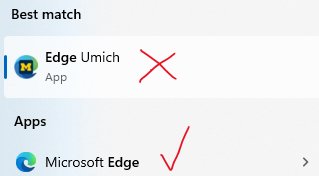
If logging in from a Michigan Medicine computer with a VA smart reader, only the Citrix method is supported. We recommend using the vanilla Microsoft Edge as your browser. The website will not work via the "Edge Umich" browser, denoted by the icon below. On kiosk computers, Chrome may also block the download required to open the program.
Troubleshooting
If you have problems with the workflow, try using a different web browser or use AVD instead of Citrix. If you continue to have problems, try using the VA Certificate Chain Fix located at the bottom of this VA help page. This tool will only work on a personal computer.
If your account gets suspended, email VHAANNHPTOnboarding@va.gov as soon as possible. It is much easier to reactive an account that is recently suspended (>30 days since last login). If an account has been suspended for a long time (think >90 days), your account may be permanently terminated and you would have to fully re-onboard from the beginning.
For more help, you can always email VHAANNHPTOnboarding@va.gov or contact the VA Enterprise Service Desk (ESD) at 855-673-4357.
Can I get a VA PIV smartcard reader installed on a computer in my department?
Yes, you can ask IT to install the necessary drivers for the PIV reader to work on a Michigan Medicine computer. However, you or your department must obtain a PIV reader to use with that computer.
To request the driver install with HITS submit a non-urgent issue ticket via the Service Now ticket system. You will need the workstation IT, building and room number.
As of Mar 2026 the correct driver can be found on the Idemia website here: https://na.idemia.com/wp-content/uploads/2021/09/CivMinidriver-1.2.8.zip
